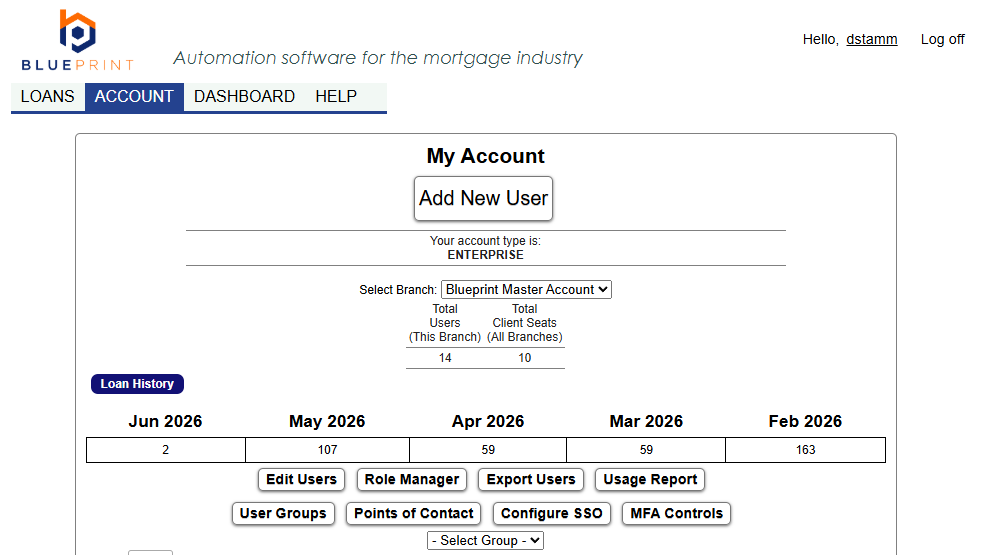
IncomeXpert offers multi-factor authentication for users using username and password for authentication. Enablement of MFA is optional and determined by the lender’s internal policies and preferences. MFA can be enabled and configured by any user with the Reset Passwords permission in Role Manager.
To configure MFA, go to the ACCOUNT page on the top navigation. Click on the MFA Controls button.
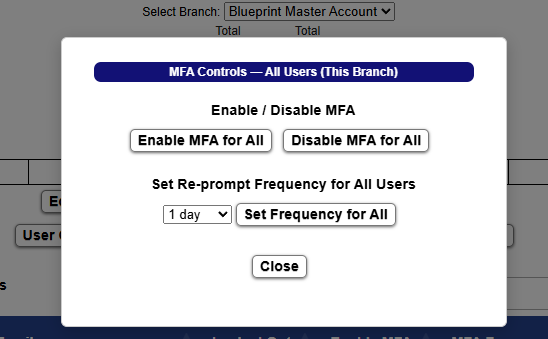
The MFA Controls button will open a modal window where you can globally enable or disable MFA for all users as well as specify the MFA re-prompt frequency. The re-prompt frequency will set how frequently the user will need to satisfy a MFA challenge when logging in. The frequency is adjustable from 1 day, 5 days, 10 days, 15 days, or 20 days.
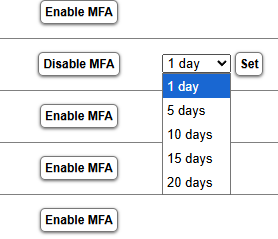
In some cases you may not want to add MFA to all users. If that is the case, you can selectively disable MFA, as well as adjust the re-prompt frequency on a per-user basis, if so desired.
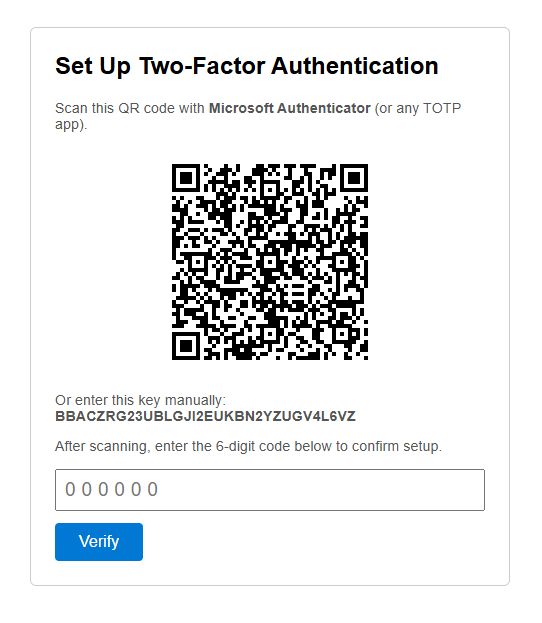
When MFA is enabled for a user, on their next login they will be routed to a screen with a QR code. This QR code can be scanned and set up in the authenticator app of their choosing.
If MFA is subsequently disabled for a given user, then later re-enabled, they will need to delete the Blueprint app in their authenticator application and re-scan the QR code. The prior entry for Blueprint in the authenticator application will still provide challenge codes, but these codes will fail. The only course of action is to delete the Blueprint app from the authenticator and rescan the code to reestablish MFA.